A client who books online and then doesn't show up costs you a time that someone else could have booked, and that hurts most at your busiest times. With booking requirements, you decide what a client must do before an online booking is confirmed: sign in, have booked with you before, pay part or all of the price in advance, or both sign in and pay. A requirement can apply to every online booking, or only to certain staff members, services, dates and times.
To add one, go into Setup > Online Booking > Booking requirements and tap the plus button in the lower-right corner. Choose the Requirement Type, set what the requirement applies to, and tap Save. Tap a requirement in the list to change or delete it.
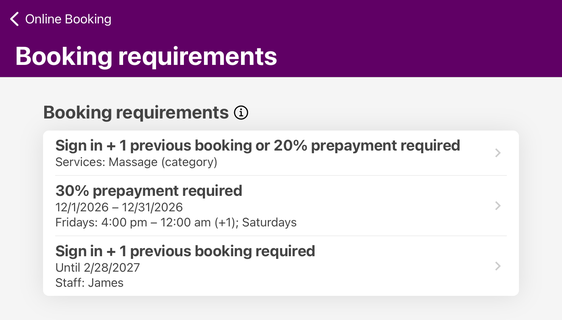
The order of the list matters: only the first requirement in the list that matches a booking applies to it, as explained under When several requirements match. Booking requirements only apply to online bookings. Appointments you make in the app are never affected.
There are four types of requirements:
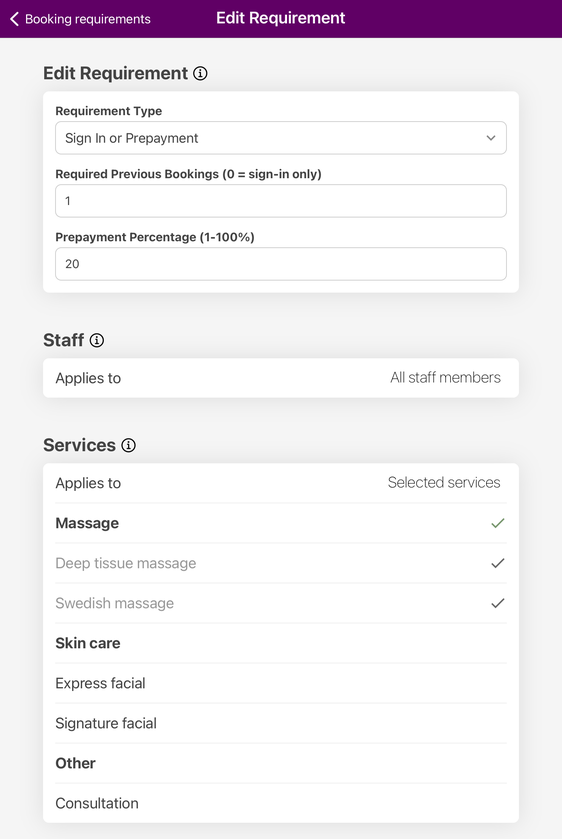
The three types with prepayment need a payment account. Set one up as described under Online payments and select it under Setup > Settings > Client payments. If you later remove the payment account, the requirements with prepayment are deleted. The app tells you how many there are before it does.
A requirement without limits applies to every online booking. You can limit it in these parts of the requirement, and with more than one limit, a booking must match all of them:
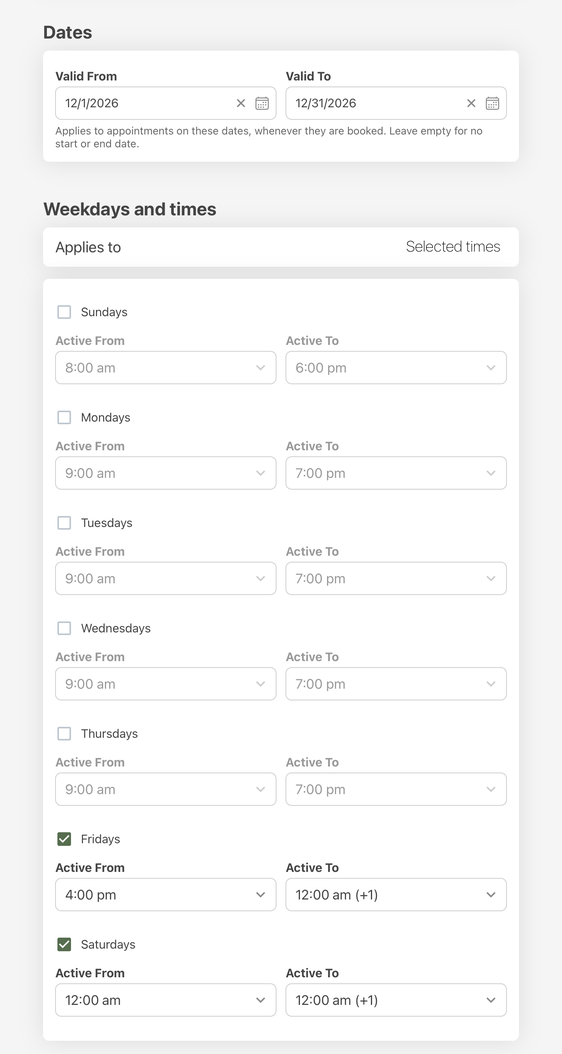
If a booking has several services, the requirement applies when one of them matches all the limits.
If you delete a staff member, service or category that a requirement is limited to, it's taken off the requirement. If it was the last one selected in that part, the requirement is deleted, so that it never turns into one that applies to everyone.
Only one requirement applies to a booking: the first one in the list that matches it. Requirements further down the list are ignored for that booking, even if they match too.
So put the most specific requirements at the top and the broader ones below them. To change the order, hold a requirement and drag it to its new place; in a web browser, first tap the button with the arrows at the top of the page.
Say you have a 30% deposit for massages on Fridays and a sign-in requirement for all bookings. With the deposit at the top, a client who books a massage on a Friday pays the deposit, and every other booking requires sign-in. With the sign-in requirement at the top, it matches every booking, and the deposit is never asked for. If Friday massage clients should both sign in and pay, make the deposit a Sign In and Prepayment requirement.
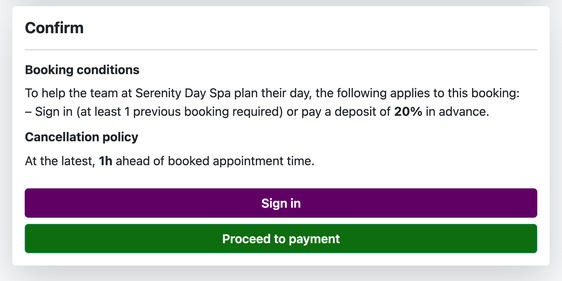
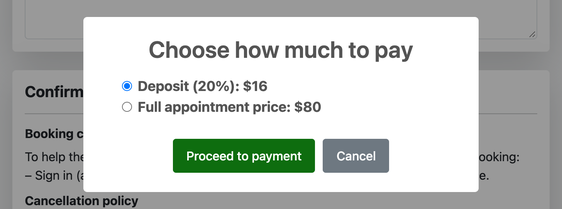
When a requirement applies, the online booking page shows a Booking conditions box above the confirm button, explaining what's required. It describes only that one requirement: the first one in your list that matches the booking. For a requirement limited to staff, services, dates or times, it also says that the requirement helps your team plan their day, and for one limited to weekdays and times, that the time is in high demand.
Four common setups and how to configure them.
Choose Require Prepayment and set Prepayment Percentage to 30. Under Services, choose Selected services and tick your massage category. Under Weekdays and times, choose Selected times and tick Friday and Saturday, from midnight to midnight (+1).
Kim has just started, and for now you only want clients you know to book with Kim. Choose Require Sign In and set Required Previous Bookings to 1. Under Staff, choose Selected staff and tick Kim. To have the requirement end after a few months, set a date under Valid To.
Choose Sign In or Prepayment, set Required Previous Bookings to 1 and Prepayment Percentage to, for example, 20. Clients who have booked with you before sign in and book as usual, while new clients pay 20% of the price in advance.
A colouring takes a long time, and you want to know who is coming and have part of the price paid in advance. Choose Sign In and Prepayment, set Required Previous Bookings to 0 and Prepayment Percentage to 30. Under Services, choose Selected services and tick your colouring category. Clients sign in and then pay 30% of the price before the booking is confirmed.